
Inputs & Actions
The four input types, the eleven action types a button or a click can run, and the conditions that gate them.
Inputs
A page's inputs block adds fields the player can fill in before pressing a button. Every
button on that page submits every input on it, so a save button reads back whatever is on
screen at the time.
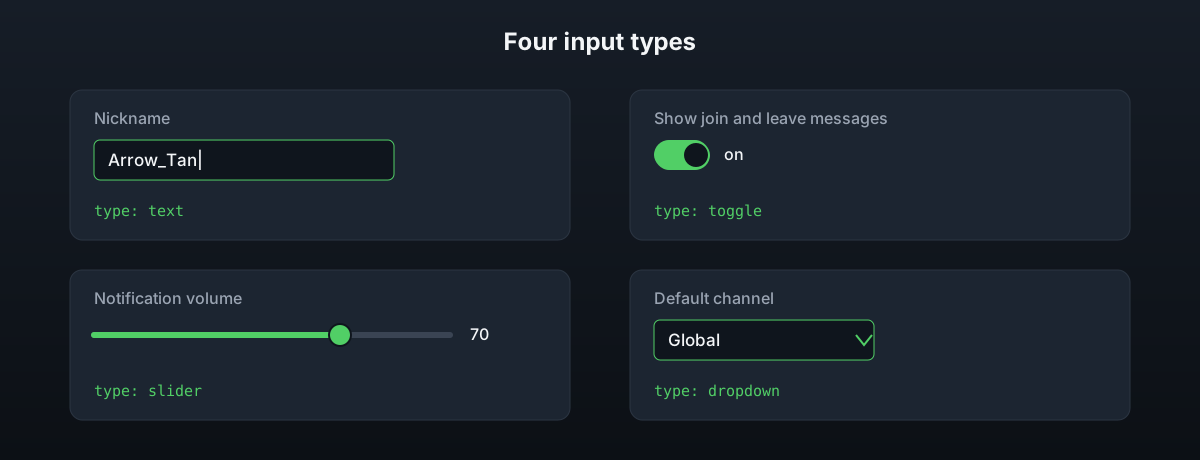
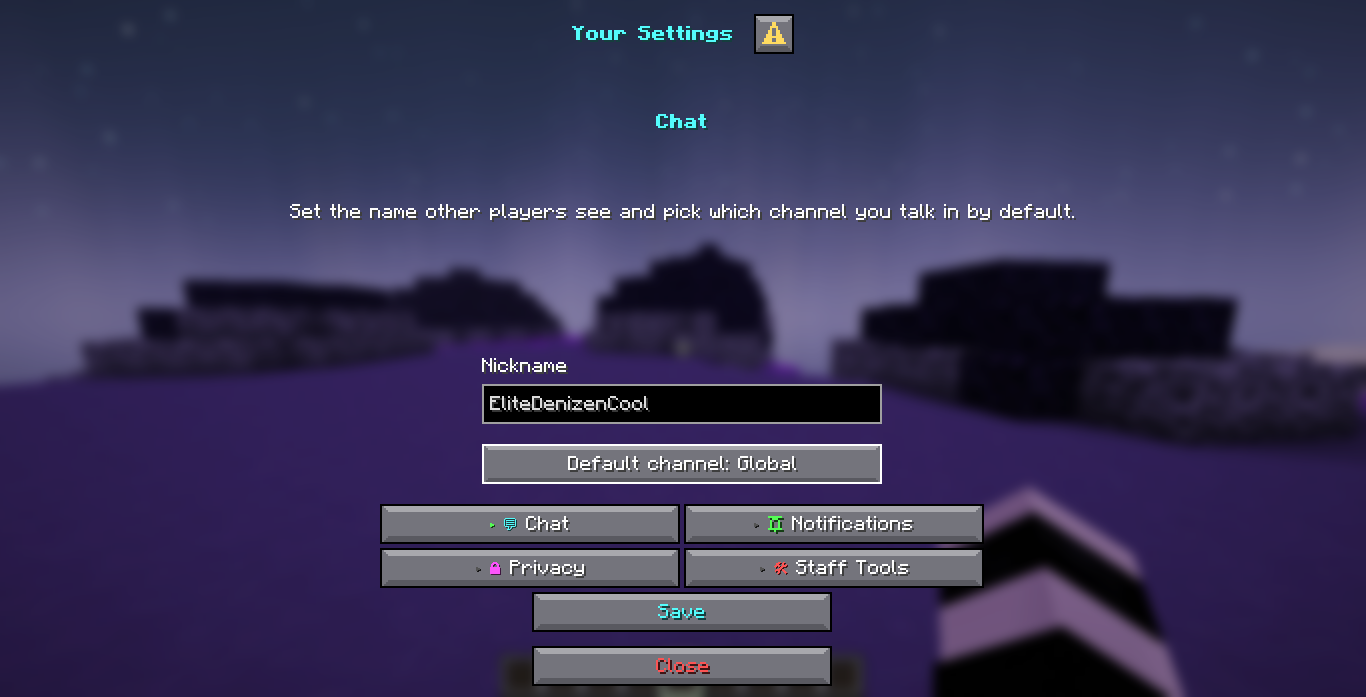
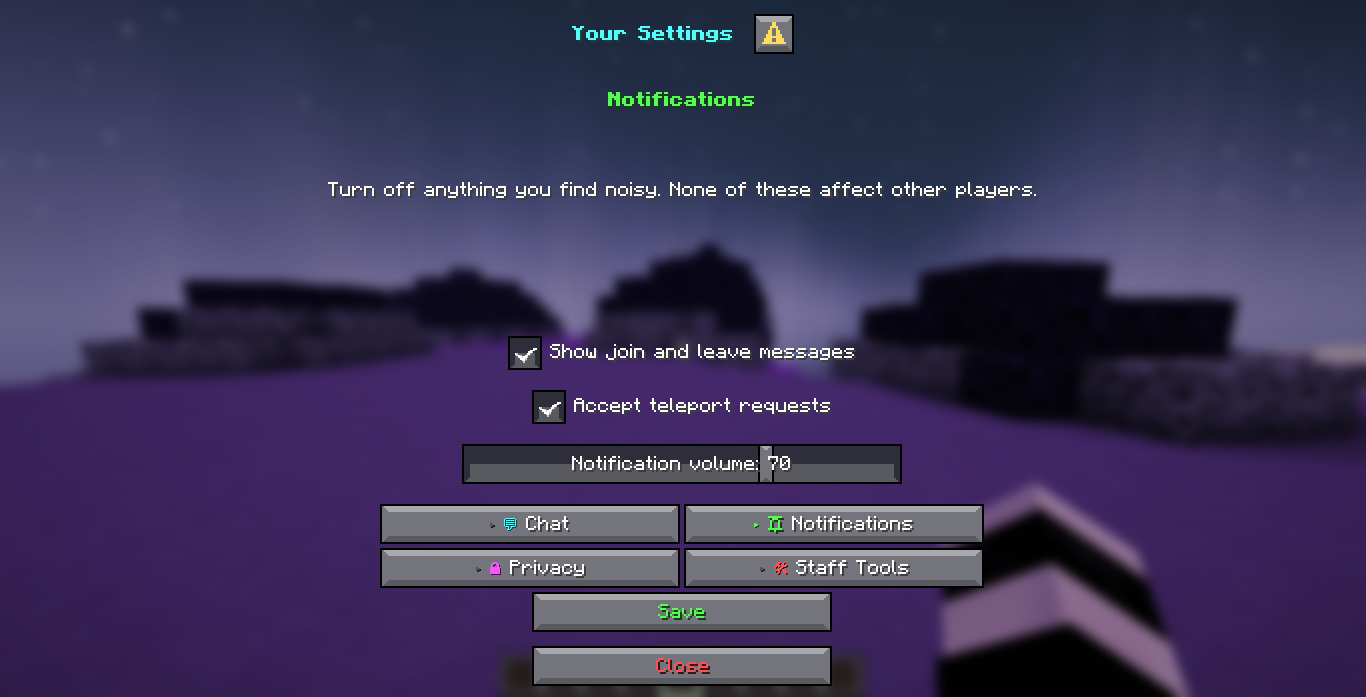
All four on the shipped settings menu. The Chat page carries a text field and a dropdown, the Notifications page two toggles and a slider, and the Save button on each submits everything on it:
inputs:
  nickname:
    type: text
    label: '<white>Nickname</white>'
    initial: ''
    max-length: 16
    width: 200
persist: truenickname:
type: text
label: '<white>Nickname</white>'
initial: ''
max-length: 16
width: 200
persist: trueA single line of free text, read back with getText.
persist: true saves the value per player, per menu and per page, so it comes back the
next time the menu is opened. An input key can only hold letters, digits and underscores,
because a dialog input becomes a command macro variable under the hood and Paper rejects
anything else while the dialog is being built.
Reading a value back
$(input_key) inside a message, notice or command action is replaced with what the
player has on screen for that key:
- type: notice
  value: '<aqua>Saved. Channel is now <white>$(channel)</white>.</aqua>'
Actions
A button, or a shortcut page's own actions list, runs one or more of eleven action types
in order.
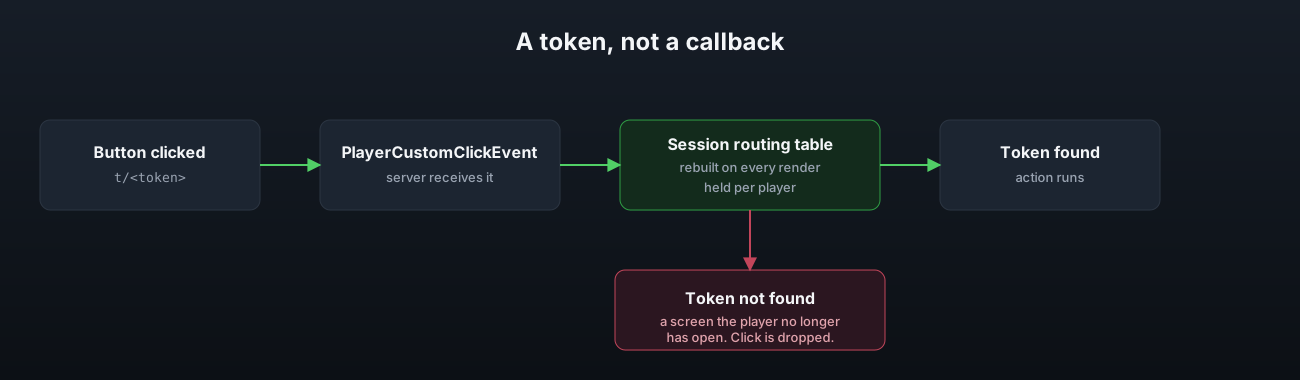
Every button carries a token rather than the action itself, and DialogForge looks the token up in a routing table it rebuilds every time it draws a screen. That is also why a stray click from a screen the player has since navigated away from does nothing: the token is simply not in the table anymore.
| Type | What it does |
|---|---|
open_page | Switches to another page in the same menu |
open_menu | Opens a different menu entirely |
player_command | Runs a command as the player |
console_command | Runs a command as the console |
suggest_command | Fills the player's chat box with a command, does not run it |
open_url | Opens a link in the player's browser |
copy_to_clipboard | Copies text to the player's clipboard |
close | Closes the dialog |
message | Sends a chat message, only visible once the dialog is closed |
notice | Draws a line of text on the menu itself, where the player is already looking |
sound | Plays a sound to the player, with volume and pitch |
buttons:
  - id: save-chat
    label: '<aqua>Save</aqua>'
    actions:
      - type: notice
        value: '<aqua>Chat settings saved.</aqua>'
      - type: sound
        value: 'minecraft:ui.button.click'
The shorthand form works for a single action with no extra fields:
actions:
- 'open_url: https://discord.arrowtan.cc'notice, not message, is what a save button wants. Chat sits behind the dialog and
cannot be read until the menu is closed, so a button that only sends a chat message reads
as a button that did nothing at all.
Client side actions
suggest_command, open_url and copy_to_clipboard need a click the client can carry out
on its own. When a button's whole action list is exactly one of these three, DialogForge
builds it as a static client side action instead of routing the click through the server,
which is what lets a link open while the menu stays on screen. Mixed into a longer list,
or on a button that also carries require, they run server side instead and the player
gets a clickable chat line they can only use once the menu is closed.
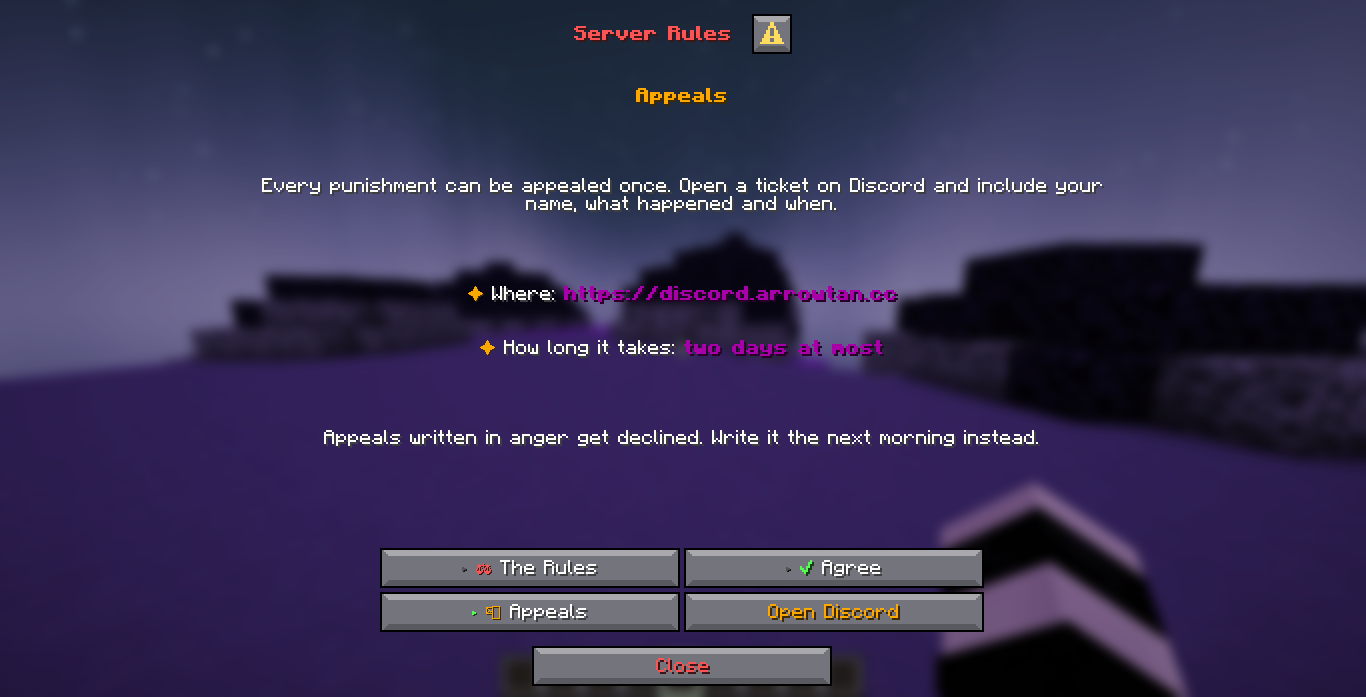
The Open Discord button on the shipped rules menu is one of these. Its only action is an
open_url, so the browser opens and the menu is still there when the player comes back:
Conditions
Two keys, read the same way. if: on a single action skips that action for players whose
answer does not match. require: on a whole button stops it running at all, and shows
menu.requirement or the button's own require-message instead.
buttons:
  - id: confirm
    require:
      accepted: 'yes'
    require-message: '<red>Tick the box first.</red>'
    actions:
      - type: message
        value: '<green>Thank you.</green>'
      - type: console_command
        command: 'cinematic play %player_name%'
        if:
          cinematic: watch
Both are checked against the input's own answer, so a toggle with on-true: watch is
matched by watch and by the literal true, never by skip. A button carrying require
is never built as a static client side action, since the server has to see the click to
refuse it.
DialogForge warns at load, per menu, when an if: or require: block names a key that is
not an input on that page, or a value the input can never hold, so a typo shows up in the
console rather than as a button that silently does nothing.