In-Game Menus
Prefer clicking to typing? PhantomBans has a menu for almost everything.
The menus are built for staff who would rather not memorise command syntax. Open one, click your way through, and PhantomBans handles the rest. Long lists are paged, so big histories stay easy to read.
Quick reference
| Command | Opens |
|---|---|
/punish <player> | The punishment menu for a player (admin only) |
/history <player> | A player’s full history, with paging |
/staffhistory <staff> | Every punishment a staff member issued |
/lookup <player> | A summary card with risk, alts, and counts |
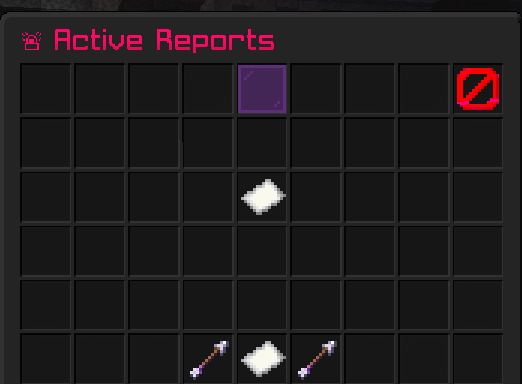
/reports | The report queue |
/appeals | The appeal queue |
/note list <player> | A player’s staff notes |
The punish menu
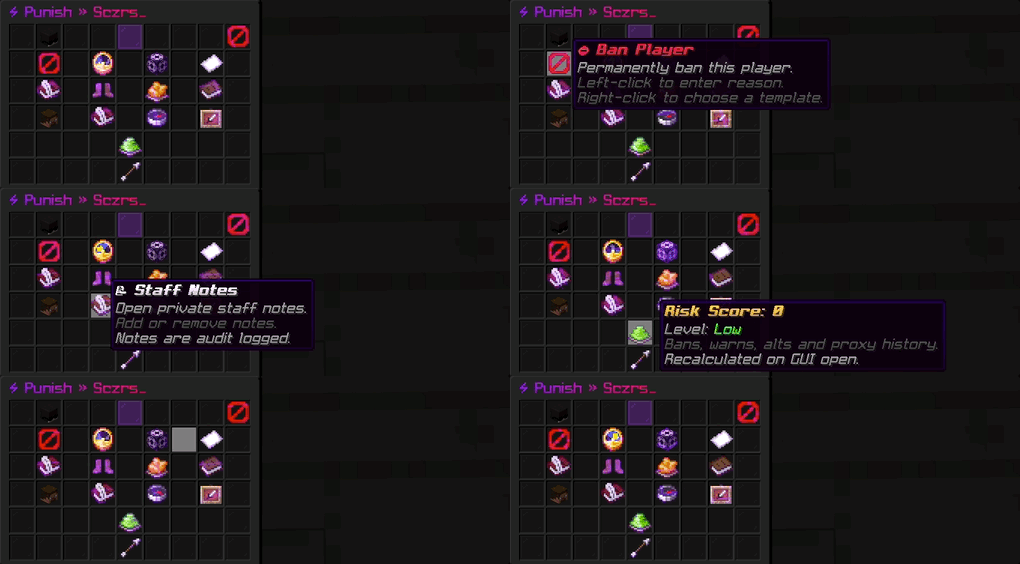
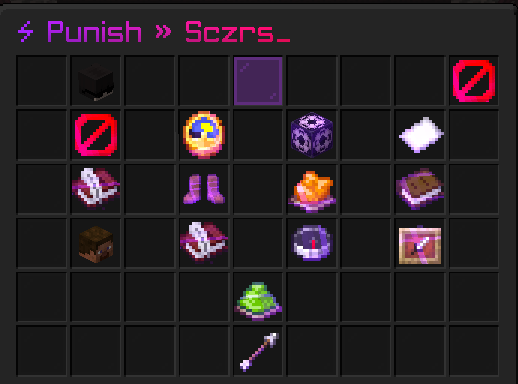
/punish <player>The main menu, and admin only. From here you can pick a punishment, choose a reason from your presets, set a duration, add evidence, and apply a template ladder. It is the fastest way to punish without remembering any command.
The history menu
/history <player>A player’s full record: bans, mutes, kicks, and warns, active or not, including silent ones. Long histories are paged so they stay easy to read. Right-click an active entry to remove that punishment.
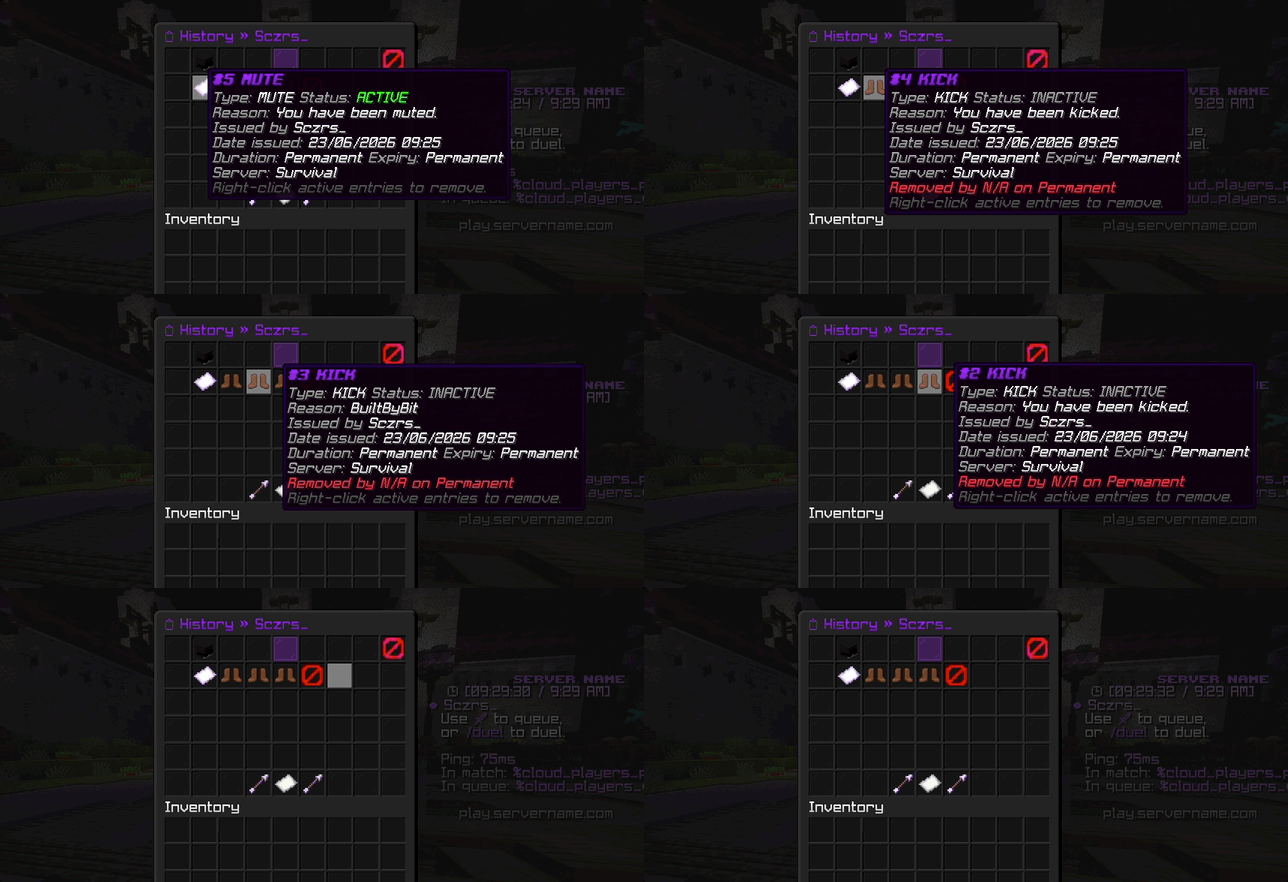
/staffhistory <staff> opens the same style of menu, but scoped to every punishment one staff member
issued. See History & Lookup for more.
The lookup menu
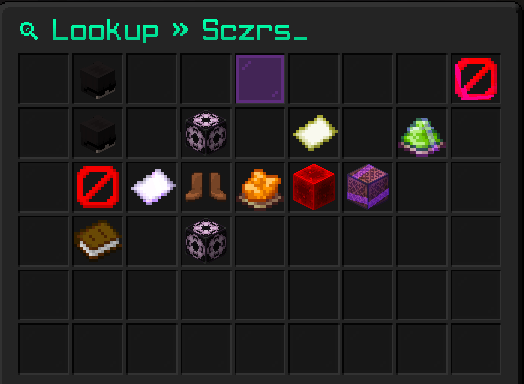
/lookup <player>A summary card for a player: risk score, ban / mute / warn counts, alt accounts on their IP, and the country they joined from. Hover any entry for the detail behind it.
The reports menu
/reportsThe report queue. Work through open reports and mark each one resolved once handled. See Reports & Appeals for the full flow.
The appeals menu
/appealsThe appeal queue. For each appeal you can accept, deny, or escalate it to a senior reviewer. See Reports & Appeals.
The staff notes menu
/note list <player>Every note your team has left on a player, in one place. See Staff Notes.
Removing things from a menu
In the history and staff history menus you can right-click an active entry to remove that punishment. The menu asks you to confirm first, then reopens so you can carry on.
You can require a confirmation click before risky actions like bans or clearing history. Turn on
confirm-dangerous-actions in the config.
Customising the menus
Every menu is fully editable from the plugins/PhantomBans/menus/ folder: materials, names, lore, glow,
custom model data, slots, titles, and layered filler designs.
Want to restyle a menu? Click here to read the full menu customisation guide.
Turning the GUI off
If you would rather your team used commands only, you can disable the punishment menu with
punish-gui-enabled: false in config.yml.
The menus and the commands do the same thing. Use whichever your team prefers, or mix both.